How to Prevent Glare on Your Computer Screen: Tips for Better Visibility
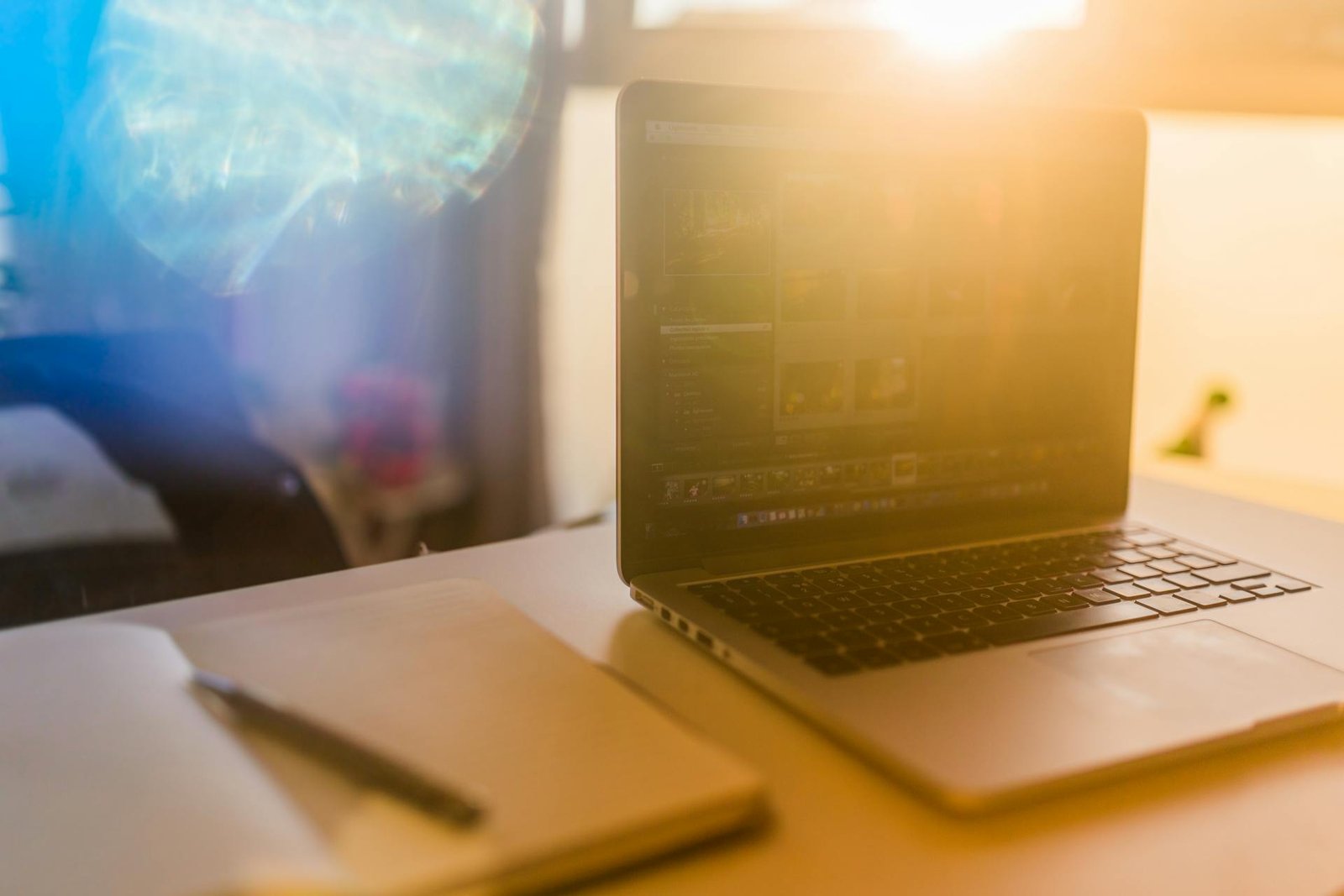
Staring at your computer screen shouldn’t feel like you’re trying to read hieroglyphics on a shiny mirror while standing in a spotlight. Yet here we are, squinting through reflections, adjusting our posture like contortionists, and developing what can only be described as “permanent screen squint face.” The good news? Learning how to prevent glare on computer screen displays is easier than you might think, and it doesn’t require a complete office makeover or breaking the bank.
Screen glare affects millions of workers daily, causing eye strain, headaches, and that peculiar frustration that comes from being defeated by your own workspace. Whether you’re battling sunny windows, overhead fluorescents, or mysterious light sources that seem to appear from nowhere, we’ve got practical solutions that actually work.
Screen Glare: The Science Behind the Struggle
Before diving into solutions, let’s explore what causes that annoying reflection dancing across your display. Screen glare occurs when light sources create bright spots or reflections on your monitor’s surface, making it difficult to see the actual content clearly. Think of it as your screen playing an unwanted game of mirror with every light source in the room.
The culprits behind computer screen glare are surprisingly diverse. Natural sunlight streaming through windows creates the most dramatic effects, especially during certain times of day when the sun’s angle aligns perfectly with your screen. Overhead lighting fixtures, desk lamps positioned incorrectly, and even light-colored walls reflecting ambient light can contribute to the problem.
Modern monitors, despite their advanced technology, still struggle with reflective surfaces. Glossy screens, while offering vibrant colors and sharp contrast, act like mirrors when light hits them at the wrong angle. Even matte displays aren’t completely immune, though they generally perform better in bright environments.
The impact goes beyond mere annoyance. Constant squinting and straining to see through glare can lead to digital eye strain, also known as computer vision syndrome. Symptoms include dry eyes, blurred vision, neck pain, and headaches that seem to appear right around the three-hour mark of your workday.
Strategic Screen Positioning: Your First Line of Defense
Reducing glare on computer screen displays starts with smart positioning. The relationship between your monitor, light sources, and your viewing angle makes all the difference between comfortable computing and a daily battle with reflections.
The 90-Degree Rule
Position your screen perpendicular to windows rather than directly facing or backing them. This simple adjustment eliminates most natural light reflections while still allowing you to benefit from ambient lighting. If your desk setup doesn’t allow for this ideal positioning, don’t panic, we’ll cover alternative solutions shortly.
Height and Tilt Adjustments
Your monitor’s height and tilt angle significantly impact how light reflects off the screen surface. The top of your monitor should sit at or slightly below eye level, with the screen tilted back between 10 to 20 degrees. This positioning helps direct reflections away from your viewing angle while maintaining comfortable neck posture.
Distance Considerations
Maintaining proper viewing distance – typically 20 to 24 inches from your eyes – not only reduces eye strain but also minimizes the impact of any remaining glare. When you’re too close to the screen, minor reflections become major distractions.
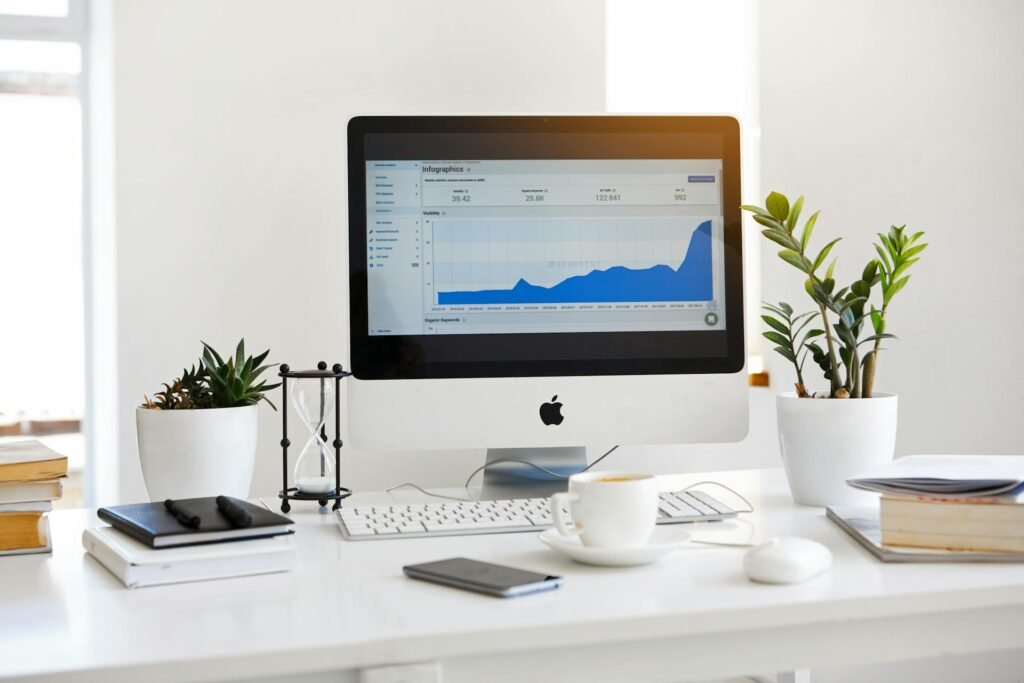
Creating an effective workstation setup involves considering how different elements work together. Your ergonomic desk setup plays a crucial role in achieving optimal screen positioning while maintaining comfort throughout long work sessions.
Lighting Solutions: Creating the Perfect Ambient Environment
How to prevent screen glare often comes down to controlling your lighting environment rather than fighting against it. The goal isn’t to work in complete darkness but to create balanced, comfortable illumination that complements your screen rather than competing with it.
Task Lighting vs. Ambient Lighting
The secret lies in understanding the difference between task lighting and ambient lighting. Harsh overhead fluorescents create the perfect storm for screen reflections, while softer, indirect lighting provides adequate illumination without causing glare issues.
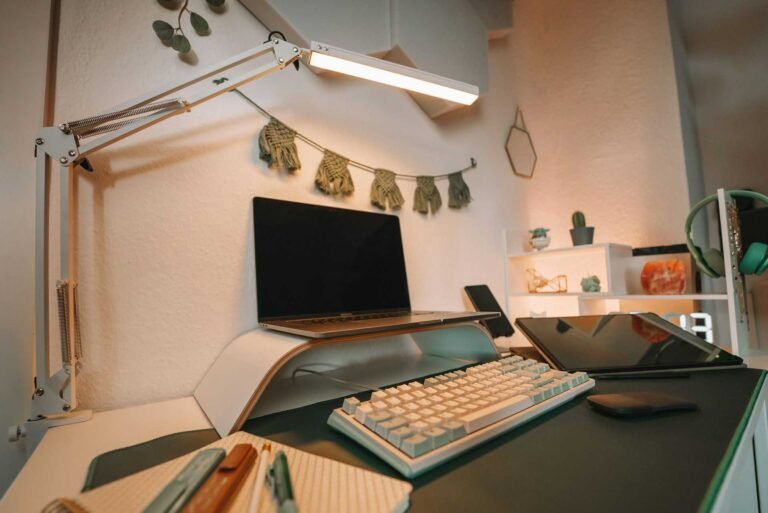
Consider replacing or supplementing overhead lighting with strategically placed desk lamps. Adjustable LED desk lamps offer precise control over light direction and intensity, allowing you to illuminate your workspace without creating screen reflections. Look for models with adjustable arms and dimming capabilities, these features let you fine-tune your lighting setup throughout the day as natural light conditions change.
Natural Light Management
Windows present both opportunities and challenges. Natural light provides excellent ambient illumination and supports circadian rhythms, but direct sunlight can make screens nearly unusable. The solution involves managing, not eliminating, natural light.
Sheer curtains or adjustable blinds allow you to control light intensity without completely blocking it out. Position these window treatments to diffuse harsh sunlight while maintaining the benefits of natural illumination. Light-filtering window treatments can transform harsh, glare-inducing sunlight into soft, screen-friendly ambient light.
For those blessed with large windows or challenging sun angles, consider light-colored, translucent panels that can be adjusted throughout the day. These create even, diffused lighting that enhances rather than hinders screen visibility.
Physical Solutions: Tools and Accessories That Make a Difference
Sometimes the best approach to reducing computer screen glare involves adding the right accessories to your setup. These solutions range from simple and affordable to more comprehensive options that transform your entire viewing experience.
Anti-glare screen protectors work by creating a slightly textured surface that scatters reflected light rather than creating mirror-like reflections. Modern versions maintain screen clarity while effectively reducing glare, though they may slightly affect color vibrancy. The trade-off is usually worthwhile for users dealing with persistent glare issues.
When selecting screen protectors, look for options specifically designed for your monitor size and type. High-quality protectors maintain touch sensitivity on touchscreen displays while providing effective glare reduction.
Monitor Hoods and Privacy Screens
Monitor hoods create a controlled viewing environment by blocking ambient light from reaching the screen surface. These accessories work particularly well in bright office environments or when working near large windows. While they might look a bit dramatic, monitor hoods provide some of the most effective glare reduction available.
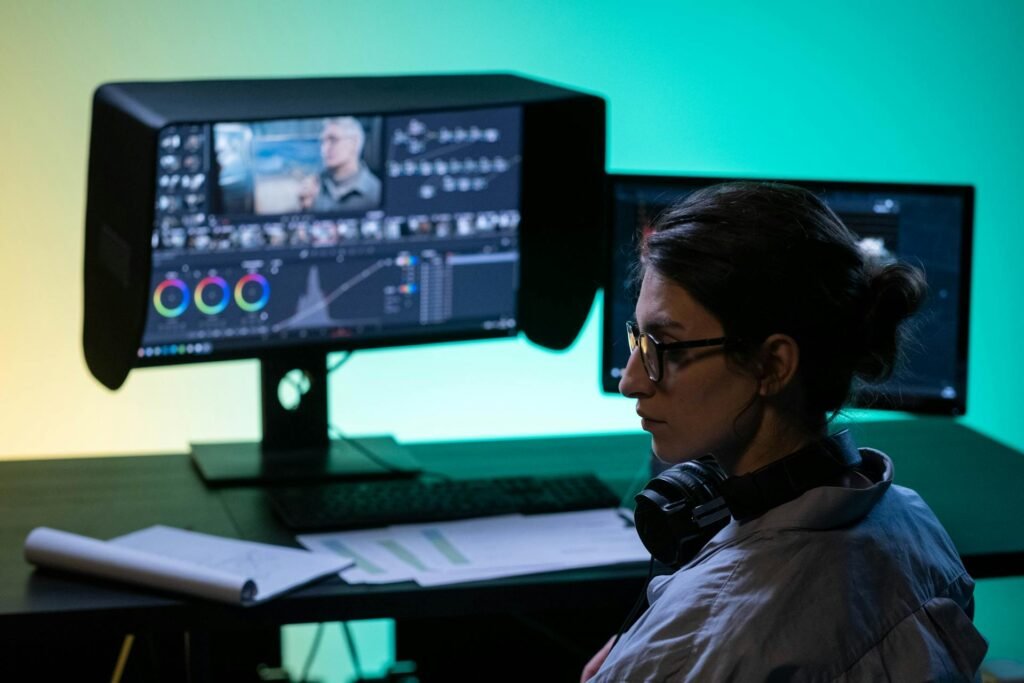
Privacy screens serve a dual purpose, protecting sensitive information from prying eyes while reducing screen reflections. These accessories work best in office environments where both privacy and glare reduction are priorities.
Desk Lamp Positioning Strategies
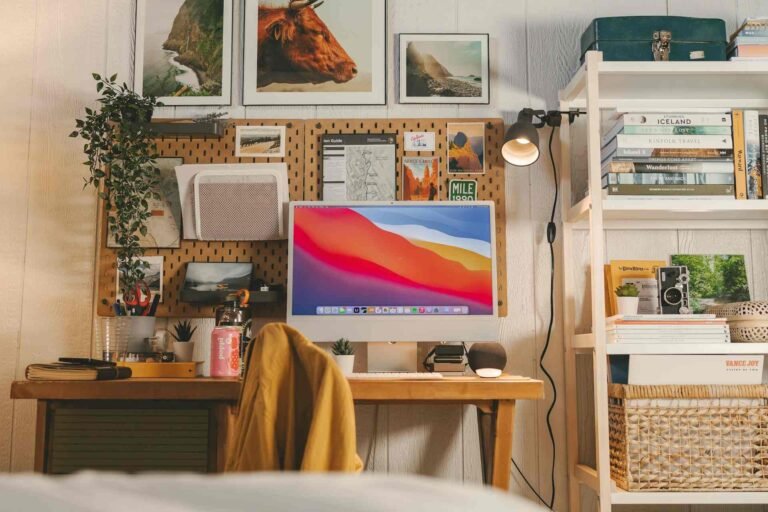
Strategic desk lamp placement can eliminate glare while providing excellent task lighting. The key is creating light sources that illuminate your keyboard and documents without reflecting off your screen.
Clamp-on LED desk lights offer versatility in positioning, allowing you to direct light exactly where needed. Look for models with adjustable color temperature, cooler light works well for detailed tasks, while warmer light reduces eye strain during extended computer work.
Consider the relationship between your dominant hand and lamp positioning. Right-handed users typically benefit from left-side lighting to avoid casting shadows while writing, while the opposite applies for left-handed users.
Monitor Settings: Optimizing Your Display for Comfort
How to reduce glare on monitor displays isn’t just about external factors. Your monitor’s internal settings play a crucial role in creating a comfortable viewing experience. Modern displays offer numerous adjustment options that can minimize the impact of unavoidable glare.
Brightness and Contrast Balance
The temptation to crank up brightness when dealing with glare often backfires, creating more eye strain rather than better visibility. Instead, aim for brightness levels that match your surrounding environment. Your screen should appear neither dramatically brighter nor darker than the ambient lighting around it.
A simple test involves displaying a white webpage or document. If it appears to glow like a light source, your brightness is too high. If it looks gray or dingy compared to white paper under normal room lighting, it’s too low.
Color Temperature Adjustments
Modern monitors allow color temperature adjustments that can significantly impact comfort in different lighting conditions. Cooler temperatures (higher Kelvin values) work well in bright, daylight-filled environments, while warmer temperatures reduce eye strain in dimmer conditions or during evening work.
Many operating systems now include automatic color temperature adjustment based on time of day. These features gradually shift from cooler daytime temperatures to warmer evening tones, reducing the harsh blue light that can interfere with sleep patterns.
Workspace Layout: Designing for Glare-Free Computing
Creating a workspace that naturally prevents screen glare involves thoughtful planning and sometimes creative solutions. The goal is designing an environment where glare reduction happens automatically rather than requiring constant adjustments.
Furniture Positioning Strategies
Your desk orientation relative to windows and light sources determines much of your glare experience. While the ideal setup places windows to your side rather than in front of or behind your monitor, real-world constraints often require creative solutions.
Consider L-shaped or corner desk configurations that allow flexible monitor positioning. These setups often provide more options for achieving optimal screen angles while maintaining workspace functionality.
Wall Colors and Surface Materials
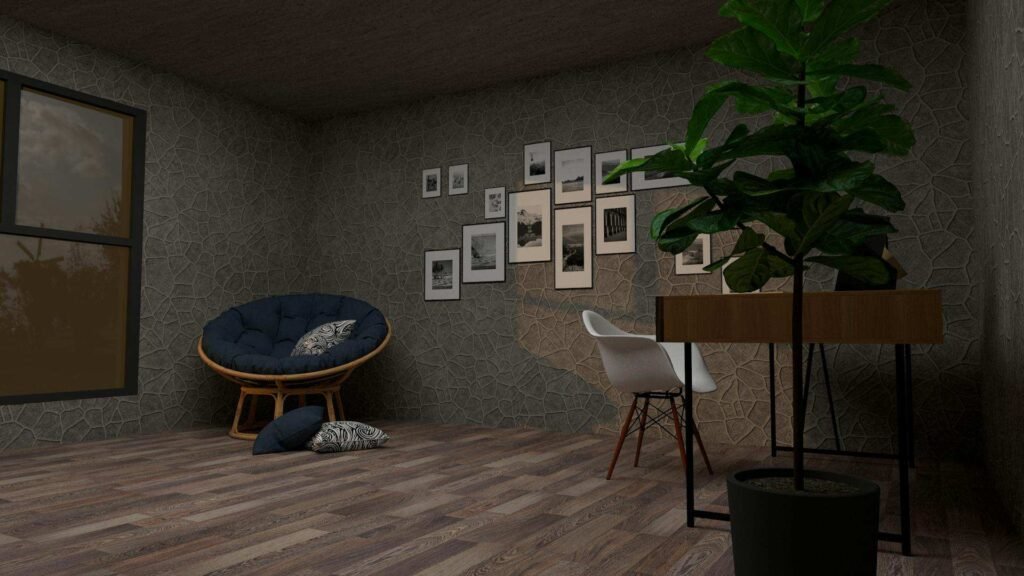
Surprisingly, wall colors and surface materials throughout your workspace affect screen glare. Light-colored walls can reflect additional light onto your screen, while dark surfaces might create harsh contrasts that strain your eyes.
Matte paint finishes reduce reflections compared to glossy or semi-gloss options. If you’re dealing with particularly challenging glare issues, consider whether nearby surfaces could be contributing to the problem.
Cable Management and Clutter Control
While seemingly unrelated, good cable management and clutter control support effective glare reduction strategies. Desk organizers and cable management solutions keep your workspace clean and make it easier to position accessories like monitor arms, desk lamps, and screen filters effectively.
Advanced Solutions: When Basic Steps Aren’t Enough
Some environments present particularly challenging glare situations that require more sophisticated solutions. These advanced approaches might involve higher investments but can completely transform difficult workspaces.
Multiple Monitor Considerations
Multi-monitor setups present unique glare challenges since each screen potentially reflects light differently. The key lies in treating each monitor individually while maintaining overall workspace harmony.
Consider staggered positioning where monitors sit at slightly different angles, allowing you to fine-tune each screen’s glare characteristics independently. Monitor mounting arms provide the flexibility needed for complex multi-display setups.
Professional Lighting Consultation
For persistent problems in professional environments, lighting consultants can assess your specific situation and recommend targeted solutions. This approach makes sense for businesses where screen glare affects multiple employees or critical work processes.
Comparison: Anti-Glare Solutions at a Glance
| Solution Type | Cost | Effectiveness | Installation | Best For |
|---|---|---|---|---|
| Screen Position Adjustment | Free | High | Immediate | Most situations |
| Anti-Glare Screen Protector | Low | Medium-High | 5 minutes | Individual users |
| Desk Lamp Upgrade | Medium | High | 10 minutes | Poor ambient lighting |
| Window Treatments | Medium | High | 30 minutes | Sunny offices |
| Monitor Hood | Medium-High | Very High | 15 minutes | Bright environments |
| Professional Consultation | High | Very High | Varies | Complex setups |
This comparison helps identify which solutions offer the best value for your specific situation. Notice how simple position adjustments often provide the highest impact for the lowest cost, always start with the basics before investing in accessories.
Daily Habits for Glare-Free Computing
Preventing glare on computer screens isn’t just about one-time setup changes, developing good daily habits ensures consistent comfort and productivity. These practices become second nature once established and can prevent many glare-related issues before they start.
Regular Break Schedules
The 20-20-20 rule (looking at something 20 feet away for 20 seconds every 20 minutes) serves multiple purposes beyond glare management. These breaks allow your eyes to reset and can help you notice when glare conditions change throughout the day.
Seasonal Adjustments
Sun angles change dramatically throughout the year, meaning a setup that works perfectly in winter might cause problems in summer. Develop the habit of reassessing your workspace layout seasonally, making small adjustments to maintain optimal conditions year-round.
Screen Cleaning Routines
Dusty or smudged screens amplify glare problems by creating additional reflective surfaces and reducing overall screen clarity. Regular cleaning with appropriate materials keeps your display performing optimally and reduces the impact of unavoidable glare.
Equipment Maintenance
LED desk lamps and other lighting equipment perform best when kept clean and properly maintained. Dust buildup on bulbs and fixtures reduces light output and can create uneven illumination that contributes to glare issues.
Frequently Asked Questions
What causes the worst computer screen glare?
Direct sunlight hitting your screen creates the most severe glare, especially during mid-morning and mid-afternoon hours when the sun’s angle aligns with typical monitor positions. Overhead fluorescent lighting and glossy screen surfaces also contribute significantly to glare problems.
Do matte screen protectors really work for glare reduction?
Yes, matte screen protectors effectively reduce glare by scattering reflected light rather than creating mirror-like reflections. However, they may slightly reduce color vibrancy and sharpness, so consider your priorities between glare reduction and visual quality.
Can I use multiple anti-glare solutions together?
Absolutely! Combining solutions often provides better results than relying on any single approach. For example, proper screen positioning plus a desk lamp upgrade plus anti-glare screen protector can eliminate even stubborn glare problems.
How do I know if my monitor brightness is set correctly?
Your screen brightness should match your surrounding environment. A white webpage should appear white (not glowing) but not gray compared to white paper under normal room lighting. Many people set brightness too high when fighting glare, which actually increases eye strain.
What’s the best time of day to adjust my workspace for glare?
Assess your workspace during your typical working hours, paying special attention to mid-morning and mid-afternoon when sun angles create the most challenging conditions. Make adjustments based on the worst-case scenarios you regularly encounter.
Are expensive anti-glare monitors worth the investment?
High-quality anti-glare monitors can be worth the investment if you consistently work in bright environments and screen work is central to your productivity. However, try positioning adjustments and lighting improvements first, these often solve glare problems at much lower costs.
How does blue light filtering relate to glare reduction?
Blue light filtering and glare reduction address different issues but often work together. Blue light filters reduce eye strain from prolonged screen use, while glare reduction improves immediate visibility and comfort. Many people benefit from both approaches.
Conclusion: Your Path to Glare-Free Computing Success
Conquering screen glare doesn’t require a engineering degree or a complete office renovation, though we won’t judge if you get carried away with the monitor hood and professional lighting consultation route. The truth is, most glare problems yield to simple, logical solutions that cost little more than a few minutes of experimentation.
Start with the free solutions: adjust your screen position, experiment with existing lighting, and clean that dusty monitor you’ve been ignoring. These basic steps solve the majority of glare issues and give you a foundation for understanding what works in your specific environment.
Remember that perfect solutions rarely happen overnight. Your ideal setup might involve combining several approaches, and what works in winter might need tweaking come summer. The key is developing an eye for how light interacts with your workspace and staying flexible in your approach.
Your eyes will thank you for the effort. Better yet, your productivity will thank you when you stop spending mental energy fighting reflections and start focusing on what actually matters, getting your work done comfortably and effectively. After all, the goal isn’t just to see your screen clearly, but to feel good while doing it.
Looking for more? Check out our desk lighting category for more articles and guides that may interest you!
Featured image credit: Photo by Negative Space on Pexels
This content is for informational purposes only. Please verify current information directly on the retailer’s site before purchasing.