Google Calendar vs Apple Calendar vs Outlook: Which Calendar App Wins?

Let’s be honest: choosing a calendar app shouldn’t feel like committing to a mortgage. Yet here we are, staring at three of the biggest names in digital scheduling, wondering which one deserves a permanent spot on our devices. Whether you’re juggling work meetings, family appointments, or just trying to remember when you last watered that sad-looking plant on your desk, the right calendar can make everything smoother.
The thing is, Google Calendar, Apple Calendar, and Outlook each have their devotees who swear they’ve found the ultimate solution. But which one actually deserves your loyalty? We’re diving deep into this calendar showdown to help you figure out what works best for your actual life, not just what looks good in a feature list.
Why Your Calendar Choice Actually Matters
Before we get into the nitty-gritty, let’s talk about why this decision isn’t just about picking the prettiest interface. Your calendar is basically the command center for your entire day. It’s where your professional life collides with your personal commitments, where you balance that yoga class with the client presentation, and where you desperately try to carve out some breathing room between back-to-back obligations.
A calendar that meshes well with your workflow can genuinely boost your productivity. When everything syncs seamlessly, you spend less time double-checking appointments and more time actually getting things done. Plus, nobody wants to be that person who shows up an hour late because their calendar app decided to have an existential crisis.
The ecosystem you’re already living in plays a massive role here. If your workspace is filled with gadgets from one particular tech family, sticking with their calendar often makes sense. But sometimes, branching out is worth the slight hassle.
Breaking Down the Big Three: What Makes Each Calendar Tick
Google Calendar: The Universal Connector
Google Calendar has become something of a default choice for millions, and there’s a reason for that. It plays well with almost everything. Whether you’re on Android, iOS, Windows, or even pulling up your schedule on a random computer at the library, Google Calendar is right there waiting for you.
What really sets Google Calendar apart is its integration with the rest of Google’s universe. Your Gmail automatically suggests adding events when it spots confirmation emails. Google Meet links pop up in your calendar invites without any extra clicks. If you live in Google Workspace for work stuff, everything just flows together naturally.
The interface is clean without being boring. You can color-code different calendars (work in blue, personal in green, that book club you keep meaning to quit in red), and switching between day, week, and month views feels intuitive. The mobile app is snappy, and sharing calendars with colleagues or family members is straightforward enough that even the least tech-savvy person in your life can manage it.
Where Google Calendar really shines is in its smart scheduling features. It can suggest meeting times based on everyone’s availability, automatically decline conflicting invitations, and even show you working hours across different time zones. For anyone coordinating with remote teams or managing multiple projects, these features are genuinely helpful rather than just flashy additions.
Apple Calendar: The Ecosystem Champion
Apple Calendar (formerly iCal, for those who remember) is deeply woven into the fabric of Apple devices. If you’re already rocking an iPhone, iPad, and Mac, this calendar feels like it was custom-built for your life. And honestly, it kind of was.
The design philosophy here is pure Apple: minimalist, elegant, and focused on making things feel effortless. Everything syncs through iCloud, so adding an event on your iPhone means it’s instantly on your Mac and iPad too. No weird delays, no mysterious sync failures. It just works.
One of Apple Calendar’s underrated strengths is how it handles natural language input. Type “lunch with Sarah next Tuesday at noon” and it figures out exactly what you mean. Siri integration takes this even further, letting you add events, check your schedule, or get directions to your next appointment without touching your screen. Perfect for when you’re juggling tasks at a standing desk and your hands are full.
The time zone support is excellent, which matters more than you’d think if you travel frequently or work with people across different regions. Apple Calendar automatically adjusts everything so you don’t show up to that virtual meeting at 3 AM thinking it’s 3 PM.
However, there’s a catch: Apple Calendar really wants you to stay in the Apple ecosystem. Using it on non-Apple devices ranges from clunky to nearly impossible. If you’ve got an Android phone or a Windows laptop in the mix, you’ll feel like you’re constantly fighting against the current.
Outlook Calendar: The Professional Powerhouse
Microsoft Outlook Calendar comes from a long lineage of business-focused tools, and you can feel that heritage in every feature. This is the calendar that means business, sometimes literally. If your workplace runs on Microsoft 365 (and tons of them do), Outlook Calendar is probably already baked into your daily routine.
What makes Outlook stand out is its integration with email and task management. Your calendar, inbox, and to-do list all live in the same application, which reduces the mental overhead of switching between different tools constantly. Scheduling meetings happens right from your email thread, and you can see everyone’s availability without playing email tag for three days.
The meeting scheduling assistant in Outlook is genuinely powerful. It shows you who’s available, suggests optimal times, and even lets you book conference rooms (physical spaces still exist, apparently) all in one view. For anyone managing complex schedules with multiple stakeholders, this feature alone can justify the choice.
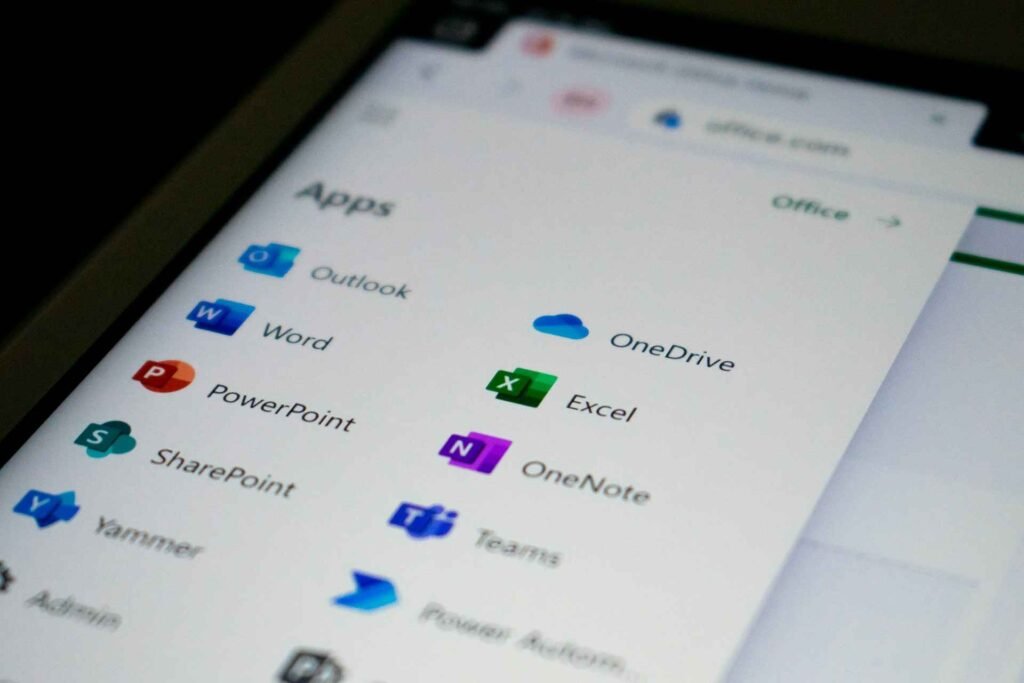
Outlook also excels at handling multiple calendars and overlaying them in useful ways. You can view your personal appointments alongside work commitments, team calendars, and project timelines all at once without everything turning into visual chaos. Color coding and filtering options give you plenty of control over what you see and when.
The mobile experience has improved dramatically over the years. The Outlook app on iOS and Android is now genuinely good, with a focused inbox feature that prioritizes important messages and a calendar view that doesn’t feel cramped on smaller screens.
Google Calendar vs Outlook Calendar: The Cross-Platform Battle
When we narrow the comparison down to Google Calendar vs Outlook calendar, we’re really talking about two heavyweight champions of cross-platform compatibility. Both work across different operating systems and devices, but they approach the challenge differently.
Google Calendar feels lighter and faster in most scenarios. The web app loads quickly, the mobile apps are responsive, and you’re not bogged down with features you’ll never use. It’s perfect for people who want their calendar to just handle scheduling without trying to be their entire productivity suite.
Outlook calendar, on the other hand, gives you more power at the expense of simplicity. The learning curve is steeper, but once you’ve got everything configured the way you want it, you can manage incredibly complex scheduling scenarios. If you’re coordinating projects with dozens of moving parts and multiple team members, Outlook’s depth becomes a real advantage.
Integration with other productivity tools is where things get interesting. Google Calendar connects beautifully with tools like Slack, Zoom, and countless other apps through its robust API. Outlook obviously plays nicest with other Microsoft products, but it’s not exclusive. Both calendars can work with external services, though you might find one or the other easier depending on what tools you’re already using.
Outlook Calendar vs Apple Calendar: The Business vs Elegance Showdown
The outlook calendar vs Apple calendar comparison is really about priorities. Apple Calendar prioritizes design and seamless integration within its ecosystem. Everything feels smooth and polished, with animations that don’t feel unnecessary and an interface that gets out of your way.
Outlook Calendar prioritizes functionality and business features. It assumes you need to do complex things with your schedule and gives you the tools to make that happen. The interface is busier, but there’s a reason for every element on screen.
For collaboration, Outlook has the edge in traditional business settings. Sharing calendars, setting up recurring team meetings, and managing availability for large groups is built into its core DNA. Apple Calendar can do these things too, but it often feels like an afterthought rather than a primary use case.
If you’re deeply embedded in the Apple ecosystem but need to work with people using Outlook at work, you can make it work. Apple Calendar can subscribe to Outlook calendars (and vice versa), though you lose some interactive features. It’s functional but not quite as smooth as sticking with one or the other.
The Practical Stuff: Features That Actually Matter Daily
Notifications and Reminders
All three calendars handle notifications, but they do it with different philosophies. Google Calendar gives you flexible reminder options and can send notifications through multiple channels. Apple Calendar integrates reminders with the separate Reminders app, which either feels cohesive or confusing depending on how your brain works. Outlook bundles everything together and can get a bit notification-happy if you don’t tune the settings.

The ability to snooze notifications is something we all use more than we’d like to admit. All three handle this, but Apple’s integration with focus modes and do-not-disturb settings gives it a slight edge for people trying to maintain better focus in their workspace.
Scheduling and Availability
When someone asks “When are you free?” all three calendars provide ways to share your availability, but the process varies wildly. Google Calendar’s “Find a time” feature works well for smaller groups. Outlook’s scheduling assistant is unmatched for complex business scenarios with many participants. Apple Calendar assumes you’ll just share your calendar with people directly, which works fine for close colleagues and family but feels less professional for broader business use.
Time blocking and setting working hours has become increasingly important as remote work blurs boundaries. Google and Outlook both let you set specific working hours and even decline meetings outside those times automatically. Apple Calendar handles this more subtly through focus modes that integrate with the entire operating system.
Mobile Experience
Let’s be real: we probably check our calendars on our phones more than on computers these days. Google Calendar’s mobile app is clean and fast, making it easy to glance at your day while you’re grabbing coffee. The widget support on both iOS and Android is solid, putting your next few appointments right on your home screen.
Apple Calendar on iOS feels perfectly at home, with smooth animations and excellent integration with other iPhone features. On Android, well, you’re technically not supposed to be using it on Android. Microsoft’s approach with the Outlook mobile app has matured nicely, combining email and calendar in a way that actually makes sense on smaller screens.
Recurring Events and Exceptions
We all have those weekly meetings that occasionally get rescheduled. Handling recurring events and their exceptions reveals a lot about calendar design. Google Calendar makes it straightforward to modify single instances or entire series. Apple Calendar does the same with slightly fewer clicks. Outlook gives you the most granular control, letting you create complex recurrence patterns that would make a mathematician proud.
Google vs Outlook Calendar: Which Wins for Teams?
If you’re making this decision for a team rather than just yourself, the stakes feel higher. Getting everyone on the same calendar system means better coordination and fewer missed meetings, but switching costs are real.
Google Calendar shines for distributed teams and organizations that value flexibility. The barrier to entry is low (everyone already has a Google account, probably), and the collaborative features work without extensive training. Shared calendars for different projects or departments keep everyone aligned without overwhelming individual schedules.
Outlook calendar makes more sense for traditional corporate structures, especially those already invested in the Microsoft ecosystem. The integration with Teams, SharePoint, and Exchange means everything flows together. Permission levels and administrative controls are more granular, which matters in larger organizations with complex hierarchies.
Both platforms support resource booking (conference rooms, equipment, that one projector that actually works properly) but Outlook’s enterprise roots show here. It was designed for managing shared resources at scale, while Google Calendar added these features later and it sometimes shows.
The Hidden Factors: What People Forget to Consider
Offline Access
What happens when your internet decides to take an unscheduled vacation? Google Calendar offers limited offline functionality, letting you view events but restricting what you can edit. Apple Calendar handles offline situations more gracefully since everything’s synced to your device already. Outlook’s offline mode varies depending on whether you’re using the desktop app (pretty good) or web version (not so much).
Data Privacy and Ownership
Google makes money partly through data and advertising, though calendar events themselves aren’t used for ad targeting. Apple positions itself as the privacy-conscious option, keeping everything encrypted and under your control. Microsoft falls somewhere in the middle, with business accounts getting strong privacy protections through enterprise agreements.
For most people, these differences matter more in principle than in practice. But if you’re scheduling sensitive meetings or dealing with confidential information, it’s worth considering who has access to your calendar data and under what circumstances.
Customization and Extensions
Power users love tinkering with their tools, and these calendars offer varying degrees of customization. Google Calendar has the most robust third-party ecosystem, with countless apps and extensions that add functionality. Apple Calendar is more locked down but integrates deeply with system-level features. Outlook sits in between, with plenty of add-ins available through Microsoft’s marketplace.
Cost Considerations
Google Calendar is free for personal use and included with Google Workspace for businesses. Apple Calendar comes with your Apple devices at no extra cost. Outlook Calendar is free in its basic form but truly shines with a Microsoft 365 subscription, which brings additional storage, desktop apps, and advanced features.
For basic personal scheduling, you won’t pay anything for any of these options. The question is whether the premium features in paid tiers actually matter for your specific needs.
What Works for Different Types of People
The Freelancer or Solo Entrepreneur
You need flexibility and integration with client-facing tools. Google Calendar probably makes the most sense here. It plays well with scheduling tools like Calendly, integrates with invoicing and project management apps, and works across whatever devices you happen to be using. The free tier is genuinely capable, so you’re not forced into a subscription just to do basic business scheduling.
The Corporate Team Member
If your company runs on Microsoft 365, just use Outlook and make your life easier. Fighting against your organization’s ecosystem rarely ends well, and Outlook’s business features are genuinely good. If your company is Google Workspace all the way, same advice applies: go with the flow.
The Apple Devotee
You know who you are. If every device you own has a little Apple logo on it, Apple Calendar gives you that seamless experience you’ve come to expect. The integration with Siri, the smooth sync, the way it just feels right on every Apple device, these things matter when you’re deep in the ecosystem.
The Family Organizer
Shared calendars for family activities, kids’ schedules, and household management need something simple enough that everyone will actually use it. Google Calendar wins here for its ease of sharing and wide device compatibility. Not everyone in the family will have Apple devices, but everyone can access Google Calendar.
The Hybrid Worker
Juggling remote work days, office days, and personal time requires flexibility. Both Google Calendar and Outlook handle this well, with features for setting working locations and managing availability across different settings. Apple Calendar works too but shines less in collaborative work scenarios.
The Comparison Table You’ve Been Waiting For
| Feature | Google Calendar | Apple Calendar | Outlook Calendar |
|---|---|---|---|
| Cross-Platform | Excellent | Poor (Apple only) | Very Good |
| Ease of Use | High | Very High | Medium |
| Business Features | Good | Basic | Excellent |
| Mobile Experience | Great | Excellent (iOS) | Very Good |
| Integrations | Extensive | Limited | Strong (Microsoft) |
| Team Collaboration | Very Good | Basic | Excellent |
| Cost | Free / Workspace | Free (with devices) | Free / 365 subscription |
| Best For | Most people | Apple users | Business teams |
FAQ
Can I use Google Calendar with Outlook?
Absolutely! You can sync Google Calendar with Outlook through various methods. The easiest is adding your Google account directly to Outlook, which creates a two-way sync. Your Google events show up in Outlook and vice versa. There are also third-party tools that handle syncing if you need more control over the process. Some features might not transfer perfectly (like color coding or certain reminder settings), but basic event information syncs reliably.
Which calendar is best for Android users?
Google Calendar is the natural choice for Android users since it’s built into the operating system. It integrates seamlessly with other Google services, receives updates quickly, and takes full advantage of Android features like widgets and notifications. Outlook also works very well on Android if you’re in the Microsoft ecosystem, with a solid mobile app that combines email and calendar efficiently. Apple Calendar is technically possible to access on Android through web browsers, but it’s clunky and not recommended.
Can you share calendars between Apple Calendar and Google Calendar?
Yes, but with some limitations. You can subscribe to a shared Google Calendar from Apple Calendar using the calendar’s public URL or by adding your Google account to Apple Calendar. Events will flow from Google to Apple, and you can add events to the shared calendar from either platform. However, some advanced features like detailed notifications or custom event colors might not sync perfectly. It works well enough for basic schedule sharing between different platforms.
Is Outlook Calendar free?
The basic version of Outlook Calendar is free and includes fundamental scheduling features. You can use it through the web app at outlook.com or download the mobile apps without paying anything. However, a Microsoft 365 subscription unlocks premium features like desktop apps, larger mailbox storage, advanced calendar features, and integration with other Microsoft apps. For many people, the free version is perfectly adequate for personal scheduling.
Which calendar has the best privacy?
Apple Calendar generally offers the strongest privacy protection among these three options. Apple encrypts calendar data end-to-end and doesn’t scan your events for advertising purposes. The company’s business model isn’t built around data collection, which means your schedule stays private. Google Calendar data is used to improve Google services but isn’t directly used for ad targeting. Microsoft Outlook offers strong privacy for business accounts through enterprise agreements. For personal use, all three companies have reasonable privacy policies, but Apple takes the strictest approach.
Wrapping This Up: Your Calendar, Your Rules
Here’s the thing about choosing between Google Calendar vs Apple Calendar vs Outlook: there’s no objectively wrong answer. Each of these tools can handle the basics of scheduling incredibly well, and the “best” choice depends entirely on what matters to you.
If you want something that works everywhere, connects with everything, and just gets out of your way, Google Calendar is your friend. It’s the reliable workhorse that doesn’t demand much thought but delivers consistent results.
If you’re living that Apple life and want everything to feel smooth and integrated, Apple Calendar will make you happy. Sure, it’s picky about playing with others, but within its own sandbox, it’s delightful.
If you’re managing complex professional schedules, coordinating teams, or already deep in the Microsoft world, Outlook Calendar brings power and depth that the others can’t quite match.
The real secret? Your calendar should fade into the background of your life while quietly keeping everything organized. Whether that happens with Google, Apple, or Outlook doesn’t matter nearly as much as finding what clicks for you. Try them out, give each a fair shot, and pick the one that makes you think about your calendar the least.
And remember, the perfect calendar is the one you’ll actually use consistently. Even the most feature-rich platform in the world is useless if you forget to check it or can’t be bothered to enter events. Pick something that fits naturally into your workflow, set it up thoughtfully, and trust it to keep your life organized while you focus on actually living it.
Looking for more? Check out our productivity tools category for more articles and guides that may interest you!
Featured image credit: Photo by Gaining Visuals on Unsplash
This content is for informational purposes only. Please verify current information directly on the retailer’s site before purchasing.