The Best Multi Device Keyboard and Mouse Combos: 3 Top Picks for Seamless Switching
Working across multiple devices used to mean constantly unplugging and replugging peripherals, or worse, maintaining separate keyboards and mice for each device. Thank goodness those days are behind us. Today’s multi device wireless keyboard and mouse combos let you hop between your laptop, desktop, tablet, and sometimes even your phone with nothing more than the tap of a button.
But here’s the thing about shopping for these setups: the market’s flooded with options that all claim to be the perfect solution. Some are legitimately game-changing productivity boosters. Others? Well, they’ll have you wondering if you accidentally bought someone’s prototype from a garage sale.
We’ve spent considerable time examining three standout options that actually deliver on their promises. Whether you’re juggling work computers and personal devices, managing a home office alongside a gaming setup, or just tired of the cable chaos currently decorating your desk, there’s likely something here that’ll make your daily workflow considerably smoother.
Why Multi Device Keyboards and Mice Matter
The ability to control several computers or devices with one keyboard and mouse combo isn’t just a convenience factor anymore. It’s become borderline essential for how most of us actually work these days. Remote workers toggle between company laptops and personal computers. Content creators switch from editing rigs to streaming setups. Even students bounce between tablets for note-taking and laptops for assignments.
What makes a great multi device keyboard and mouse combo stand out isn’t just the ability to connect to multiple devices though. The real magic happens when everything works intuitively. The switching mechanism needs to be fast enough that it doesn’t interrupt your flow. The typing experience should feel consistent whether you’re drafting emails on your MacBook or crunching numbers on your Windows desktop. And let’s be honest, nobody wants their wireless mouse dying mid-presentation because the battery life was optimistically rated.
The best options also consider the reality that most of us live in mixed-OS households now. Your work machine might run Windows while your personal laptop is a Mac, and that tablet? Probably iPadOS or Android. Compatibility across these platforms without needing different key mappings or software gymnastics separates the genuinely useful from the merely adequate.
Another aspect worth considering: desk real estate. A chunky keyboard might be fine for a sprawling home office, but if you’re working from a kitchen table or a compact apartment desk, sleek and portable suddenly becomes pretty important. The same goes for those who actually want to carry their setup to coffee shops or co-working spaces without feeling like they’re hauling around vintage computer equipment.
Logitech MK955 Signature Slim: The Goldilocks of Multi Device Combos
The MK955 Signature Slim positions itself right in that sweet spot where premium features meet sensible pricing without quite tipping into luxury territory. For folks with larger hands who’ve struggled with cramped keyboards or mice that feel like they were designed for miniature people, this combo deserves serious attention.
Key Features and Real-World Performance
The full-size keyboard brings a laptop-style typing experience that won’t have your fingers hunting for keys or dealing with mushy feedback. Those spherically-dished keys aren’t just marketing speak either, they genuinely help with typing accuracy when you’re racing through documents or firing off quick responses. The quiet typing feature earns its keep too, especially if you share workspace with others who’d rather not hear your every keystroke.
Switching between three devices happens through dedicated buttons, which honestly feels more reliable than some competitors’ gesture-based systems. Connect via Bluetooth or the included Logi Bolt USB receiver depending on what works better for your setup. The M750 L mouse included here caters specifically to larger hands with its contoured design, plus it features SmartWheel scrolling that adapts between line-by-line precision and rapid-fire page flying.
Where things get interesting is the Logi Options+ app integration. Custom shortcuts and button remapping can genuinely speed up repetitive workflows, though you’ll need to invest some time upfront to configure everything. The keyboard stays powered for an impressive stretch, up to 36 months according to Logitech, though real-world usage with all features active will vary. The mouse clocks in at 24 months, which still beats constantly swapping batteries.
Build quality leans toward solid rather than premium, with recycled plastic accounting for a good chunk of the materials. It won’t feel quite as luxurious as metal-chassis options, but it also won’t creak or flex during normal use. The keyboard’s full-size layout means it’s not the most travel-friendly option, though the slim profile does help somewhat.
- SilentTouch technology genuinely reduces click noise without sacrificing tactile feedback
- Three-device switching works reliably across Windows, Mac, Chrome OS, Linux, and mobile platforms
- Comfortable for extended typing sessions without wrist fatigue
- Battery life largely lives up to manufacturer claims
- SmartWheel on the mouse handles both precision and speed scrolling well
- Full-size layout takes up considerable desk space
- Logi Options+ app required for advanced features only supports Windows and macOS
- Some users report the Bluetooth connection can be finicky in environments with many wireless devices
- Keys lack backlighting, which might bother late-night workers
User Experience and Feedback
See customer reviews on Amazon
Reviewers frequently note that this combo handles device switching smoothly, particularly in setups using multiple operating systems. Quiet operation receives consistent praise from those working in shared or open office environments. Several mention that the keyboard’s typing feel resembles that of MacBook-style keys, which appears to be an intentional design choice by Logitech.
Some reviewers mention that the mouse size feels slightly larger than expected for prolonged use, despite being marketed for larger hands. Connectivity issues occasionally occur in areas with multiple Bluetooth devices, though using the Logi Bolt receiver generally resolves these. Battery life reports vary, but most users indicate achieving several months of use per charge, aligning broadly with manufacturer expectations.
Verdict for the MK955: ⭐⭐⭐⭐☆ (4.3/5)
The Signature Slim combo delivers where it counts for most multi-device users. It’s not trying to be the absolute premium option, and it doesn’t need to be. If you prioritize quiet operation, reliable device switching, and a comfortable typing experience for larger hands, this setup handles those requirements without drama. The lack of backlighting and the bulkier footprint are reasonable tradeoffs given the price point and feature set.
Best for: Remote workers with multiple computers, anyone sharing workspace who needs quiet peripherals, users with larger hands who find compact options cramped.
Logitech MX Keys S Combo: When Only Premium Will Do
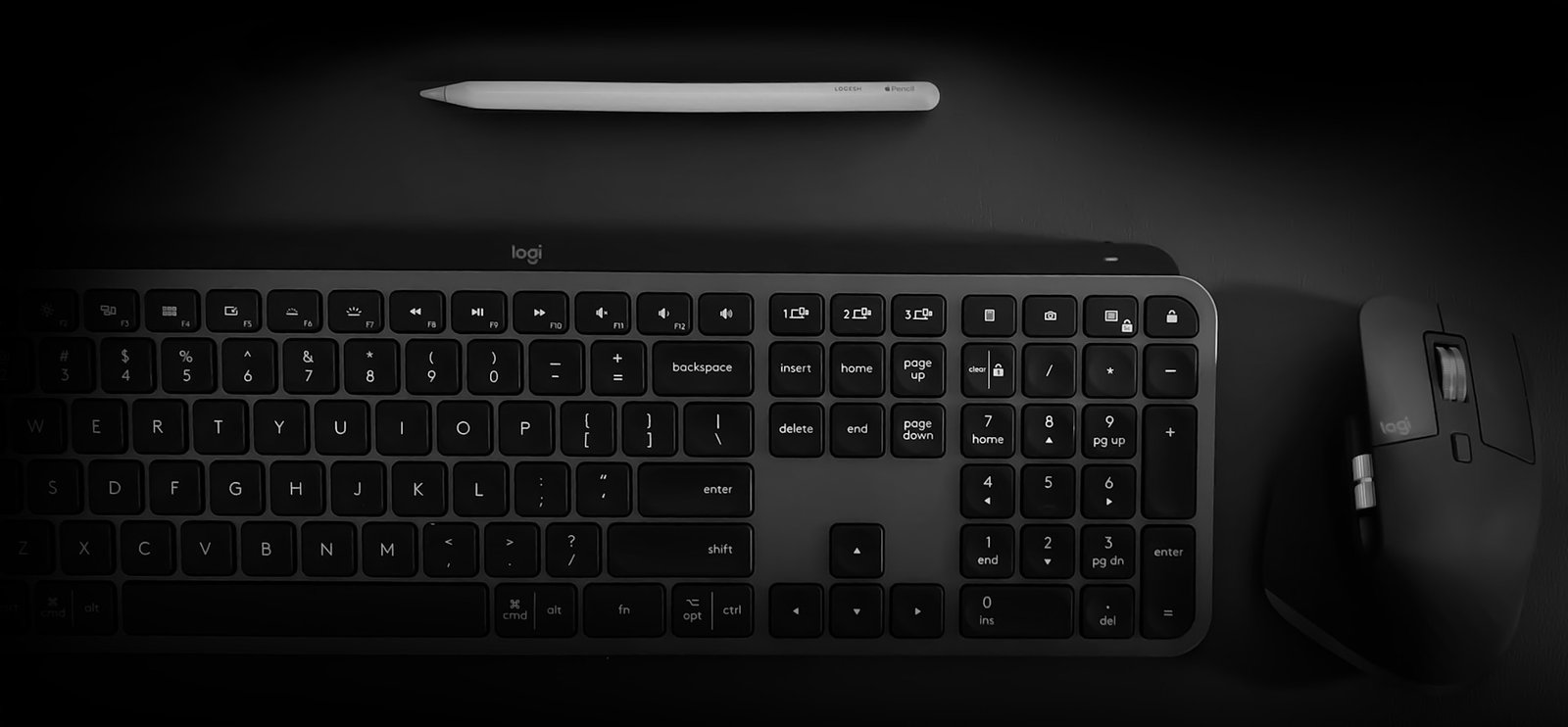
The MX Keys S Combo represents Logitech’s top-shelf offering for users who want every bell and whistle without compromise. This pairing of the MX Keys S keyboard with the MX Master 3S mouse costs about twice what you’d pay for the Signature Slim, but the performance jump justifies the premium for the right user.
Performance That Actually Matches the Price Tag
The MX Keys S keyboard features those same spherically-dished keys found in its less expensive sibling, but the overall typing experience feels noticeably more refined. Key stability is better, the acoustics are more refined, and the backlighting system automatically adjusts based on ambient light while also detecting when your hands approach. This smart illumination sounds gimmicky until you’re working in varying light conditions, then it becomes one of those features you really miss on other keyboards.
The MX Master 3S mouse pairs beautifully here, bringing an 8K DPI sensor that tracks on virtually any surface, including glass. The MagSpeed electromagnetic scroll wheel deserves specific mention, it can blast through documents at 1,000 lines per second or provide precise line-by-line control depending on how you spin it. Seven programmable buttons mean you can customize workflows extensively through the Logi Options+ software.
Real-world battery performance for the keyboard stretches to 10 days with backlighting on, or several months with it off. The mouse manages about 70 days on a full charge. Both use USB-C for charging, which is convenient for those already carrying USB-C cables for other devices. Just remember you’ll need to actually charge these periodically, unlike the battery-powered Signature Slim.
Connectivity happens via Bluetooth or the included Logi Bolt receiver, with support for up to three devices per component. The Flow feature lets you seamlessly move between computers, even transferring files and text by copying on one machine and pasting on another. It’s legitimately useful for anyone regularly moving work between systems, though setup requires some initial configuration.
- Premium typing feel with exceptional key stability and quieter operation
- MX Master 3S mouse offers class-leading ergonomics and precision
- Smart backlighting adapts to environment and saves battery when unused
- Flow feature enables smooth cross-computer workflows
- USB-C charging eliminates battery replacement hassle
- Included palm rest enhances comfort for marathon work sessions
- Premium pricing puts it out of reach for budget-conscious users
- Requires charging unlike battery-powered alternatives
- Flow feature only works with Windows and macOS
- Can experience connectivity hiccups in Bluetooth-crowded environments
- Keyboard weight makes it less portable despite the slim profile
User Experience and Feedback
See customer reviews on Amazon
The MX Keys S Combo attracts users seeking high-end peripherals with measurable quality improvements. Feedback highlights the precise typing experience and the MX Master 3S mouse’s ergonomic design. Those who use the Flow feature regularly emphasize its convenience for managing multiple computers, while others mention rarely needing it in daily use.
Battery life satisfaction varies by usage pattern and backlight intensity. Frequent users report weekly charging, while light users extend intervals substantially longer. Opinions on the mouse’s optical switches are mixed, most appreciate their responsiveness, but some prefer the tactile feedback of traditional mechanical switches. Reports of build quality issues are uncommon. Reviewers describe the materials as solid and well-constructed. When criticism arises, it typically concerns occasional Bluetooth instability in crowded wireless environments, for which the Logi Bolt receiver provides a reliable alternative.
Final Assessment: ⭐⭐⭐⭐☆ (4.6/5)
This combo earns its premium price tag through consistently excellent execution across every element that matters for productivity. The typing experience genuinely feels better than most keyboards costing similar amounts. The MX Master 3S remains one of the best productivity mice you can buy. If your workflow demands the best tools and you can justify the investment, this setup won’t disappoint.
Best for: Professionals working across multiple high-powered machines, creative professionals needing precision and programmability, anyone who types and clicks for hours daily and values ergonomic excellence.
seenda COE401: Budget Champion with Surprising Performance
The seenda Bluetooth Keyboard and Mouse Combo costs a fraction of either Logitech option while still delivering the core functionality most people actually need from a multi device keyboard and mouse setup. Yes, it makes some compromises. But for those unwilling to spend premium dollars on peripherals, this combo punches impressively above its weight class.
What Budget Actually Gets You
The COE401 features a full-size keyboard with scissor-switch keys that provide a surprisingly decent typing experience given the price. The metal panel adds some rigidity and prevents the flex you’d expect from budget keyboards. It won’t feel as refined as the Logitech options, but it’s perfectly serviceable for daily work without the mushy, unsatisfying feedback that plagues cheaper alternatives.
Multi-device connectivity spans three devices through a combination of 2.4GHz USB and dual Bluetooth connections. The USB receiver stores conveniently in the mouse battery compartment, which is a thoughtful touch often missing from budget options. Switching between devices happens via physical switches on both the keyboard and mouse, which some users find more intuitive than button combinations.
Battery life claims stretch to 180 days for the keyboard and 90 days for the mouse with regular use. The USB-C rechargeable batteries mean no disposable battery costs down the road, which actually helps narrow the long-term cost difference with non-rechargeable options. Charging takes about 2-3 hours and the intelligent sleep modes kick in after extended inactivity to preserve battery.
The mouse offers adjustable DPI from 800 to 2,400, covering most everyday needs without getting into the extreme precision territory of premium options. It’s comfortable enough for regular use, though ergonomics clearly aren’t as refined as the contoured designs from Logitech. The included keyboard cover is a nice addition for protecting against spills and dust.
- Great value for the price point
- USB-C rechargeable batteries eliminate ongoing battery costs
- Metal keyboard panel adds surprising rigidity
- Stores USB receiver in mouse for convenient portability
- Broad device compatibility including Windows, Mac, iPad, and Android
- Included silicone keyboard cover protects against spills and dust
- Build quality clearly reflects the budget pricing
- Mouse ergonomics are basic and may cause discomfort during extended use
- Keys lack the refinement and stability of premium options
- Mouse forward/back buttons don’t work with Mac or iOS
- No backlighting for low-light work
User Experience and Feedback
See customer reviews on Amazon
Users generally find that the seenda combo performs in line with expectations for its price category, with some noting that it slightly exceeds them. The keyboard receives frequent positive feedback for its solid feel and USB-C charging convenience. Multi-device switching works reliably for most users, though some Mac users mention needing minor system adjustments for shortcut compatibility.
Criticism more often targets the mouse than the keyboard. Several reviewers describe the mouse as too basic for extended use, and a few report inconsistent tracking on certain surfaces. The keyboard, by contrast, earns broader approval, with multiple users expressing surprise at its performance relative to cost. Feedback on durability is more variable than for premium alternatives. While most users report satisfactory longevity, there are occasional mentions of quality issues. Overall, reviewers view this as consistent with expectations for a budget-friendly peripheral set.
Value Verdict: ⭐⭐⭐⭐☆ (3.9/5)
The seenda COE401 makes sense for specific situations: you’re on a tight budget, you need basic multi-device capability without premium features, or you want a backup set for occasional use. It handles the fundamentals competently and costs less than dinner for two at a decent restaurant. Just temper your expectations regarding longevity and refinement.
Best for: Students on tight budgets, temporary workspace setups, backup peripherals, users who prioritize basic functionality over premium features, anyone wanting to test multi-device workflows before investing in premium options.
Comparing the Contenders: Side by Side
| Feature | Logitech MK955 | Logitech MX Keys S | seenda COE401 |
|---|---|---|---|
| Price | See latest price | See latest price | See latest price |
| Connectivity | Bluetooth, Logi Bolt USB | Bluetooth, Logi Bolt USB | Bluetooth, 2.4GHz USB |
| Devices Supported | 3 | 3 | 3 |
| Keyboard Power | Batteries (36 months) | Rechargeable (10 days backlit, 5 months without) | Rechargeable (180 days) |
| Mouse Power | Batteries (24 months) | Rechargeable (70 days) | Rechargeable (90 days) |
| Backlighting | No | Smart auto-adjust | No |
| Special Features | SilentTouch, SmartWheel | MagSpeed wheel, Palm rest | Keyboard cover |
| Best For | Quiet operation, Larger hands | Premium productivity, Cross-computer workflows | Budget buyers, Basic needs |
What Actually Matters When Choosing Your Combo
Now that we’ve examined the individual products, let’s talk about what should actually drive your decision. Price obviously plays a role, but throwing money at the most expensive option doesn’t automatically solve every peripheral need.
The Device Juggle: How Many Is Too Many?
All three options here support three devices, which covers the typical user scenario of work computer plus personal laptop plus tablet. But consider how you actually switch between devices throughout your day. If you’re constantly hopping between machines every few minutes, button-based switching becomes critical, you don’t want finicky connections or laggy response times breaking your concentration. On the other hand, if you mainly work on one device and occasionally switch to another, slightly slower connection times won’t ruin your life.
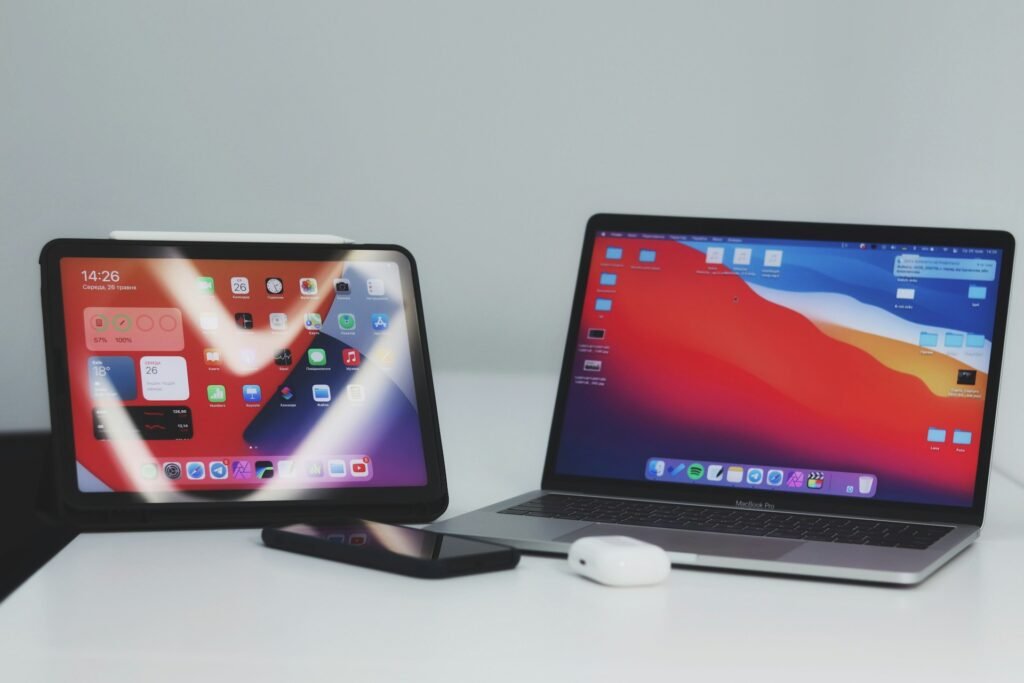
The switching mechanism matters too. Button-based switching (pressing a physical key or switch) tends to be more reliable than software-based approaches, though less elegant. The Logitech Flow feature in the MX Keys S Combo offers the smoothest experience for cross-computer work, but it requires more setup and only functions between computers with the software installed.
Battery Life vs Charging: Pick Your Preference
Traditional battery-powered peripherals like the MK955 Signature Slim offer the convenience of incredibly long operational life between replacements. You might go literal years without needing fresh batteries, which means one less thing to remember. The downside? Eventually you’ll need batteries, they’ll be dead at the worst possible moment, and you’ll realize your desk drawer doesn’t have any.
Rechargeable options like the MX Keys S and seenda combos eliminate battery replacement hassles but introduce charging into your routine. Most users establish habits around this, plugging in Friday afternoons, charging overnight weekly, whatever works. The bigger annoyance comes when you forget and your keyboard dies mid-workday, forcing you to either work tethered while charging or hunt for backup peripherals.
Your lifestyle probably indicates which approach suits you better. Frequent travelers might prefer rechargeable options that use common USB-C cables rather than hauling spare batteries. Home office workers who rarely move their setup might appreciate the “set it and forget it” nature of battery power.
Typing Feel: More Subjective Than You’d Think
Keyboard enthusiasts will talk your ear off about key travel, actuation force, and tactile feedback. For everyone else, it boils down to whether typing feels comfortable and satisfying. The challenge is that what feels perfect to one person seems mushy or too stiff to another.
Laptop-style low-profile keys, like those found in all three combos reviewed here, generally suit fast typists who don’t want excessive key travel. If you’re coming from a traditional desktop keyboard with deeper keys, these might feel weird initially. Give yourself a few days to adjust before deciding, initial impressions often mislead.
Related article: Do Mechanical Keyboards Actually Make You Type Faster?
Quietness deserves consideration too, especially if you work around others. The SilentTouch technology in the MK955 and the generally quiet keys on the MX Keys S make real differences in shared environments. The seenda option is reasonably quiet but not silent. Think about whether you’re typing during video calls, working near sleeping family members, or stationed in a bustling open plan office where noise contributes to the general chaos anyway.
Ergonomics: Your Future Wrists Will Thank You
Hand and wrist comfort during extended computer use matters way more than most people realize until problems develop. Proper ergonomics can prevent strain, reduce fatigue, and potentially help you avoid longer-term issues.
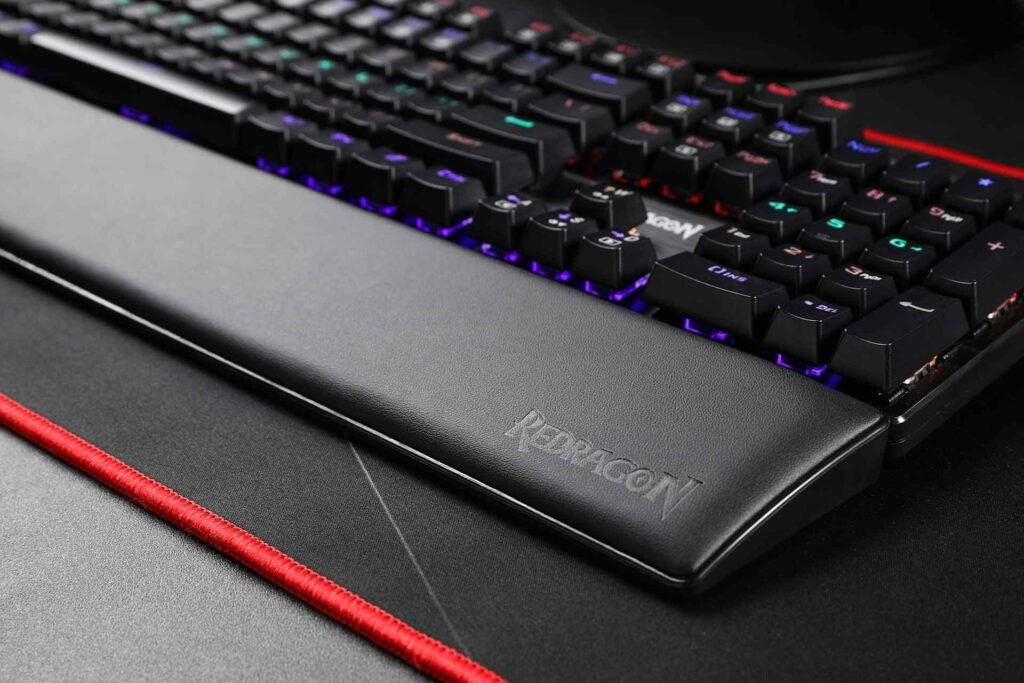
Keyboard angle and wrist position significantly impact comfort. The MX Keys S Combo includes a palm rest specifically to encourage better wrist posture during typing. Whether you need this depends on your desk setup, chair height, and natural typing position. Some people find palm rests essential while others consider them obstructions.
Mouse ergonomics vary even more between individuals. The MX Master 3S’s sculpted design fits some hands perfectly while feeling oddly shaped to others. The M750 L in the Signature Slim works well for larger hands but might feel oversized for smaller ones. The seenda mouse offers basic comfort without standout ergonomics either way.
If you’ve experienced wrist strain, numbness, or discomfort during computer use, ergonomic considerations should probably trump other factors. Consider supplementing your setup with wrist rests regardless of which keyboard and mouse combo you choose.
Multi-Device Setups Beyond the Basics
Once you’ve mastered the keyboard and mouse situation, you might find yourself thinking about other elements of a multi-device workspace. After all, if you’re running multiple computers, you’re probably dealing with other connection challenges too.
Anyone working with multiple computers knows cable management becomes exponentially worse with each additional device. This is where powered USB hubs can really shine, letting you connect peripherals and accessories to a central hub that switches between computers. Just be aware that USB hubs can add latency in some scenarios, which might matter for specific workflows.
For setups with numerous peripherals, USB device limits can become relevant when you’re connecting keyboards, mice, webcams, microphones, and storage devices to multiple machines through a hub. Planning your connections helps avoid frustrating situations where something won’t connect because you’ve maxed out available resources.
Don’t overlook environmental factors in your workspace either. Proper lighting conditions affect both productivity and comfort during extended computer sessions. The office temperature and even humidity levels influence how pleasant your workspace feels during long stretches at the keyboard.
Frequently Asked Questions
Can I Use a Multi Device Keyboard and Mouse With Different Operating Systems?
All three combos reviewed here work across Windows, Mac, and most support Linux, Chrome OS, and mobile platforms too. The Logitech options include specific keys and shortcuts for different operating systems, making the transition smoother. The seenda combo works with different systems but requires some manual adjustment of system preferences on Mac for optimal functionality. The key thing is verifying your specific devices appear on the compatibility list before purchasing.
How Fast Is Switching Between Devices?
Switching speed varies by combo and connection method. Using dedicated buttons typically connects within one to three seconds. The Logitech options generally switch faster and more reliably than the budget seenda option. Bluetooth connections can occasionally take longer, especially if many wireless devices are active nearby. The Logi Bolt USB receivers usually provide the fastest and most stable connections for the Logitech combos.
Do These Work With Gaming?
These combos target productivity rather than gaming, though casual gaming works fine with all of them. The MX Master 3S mouse in the MX Keys S Combo offers programmable buttons that can help with certain game types, but serious gamers will want dedicated gaming peripherals with higher polling rates and faster response times. The lack of wired connectivity options on the premium Logitech combos introduces lag that competitive gaming doesn’t tolerate well.
What Happens If the Battery or Charge Runs Out?
Battery-powered options like the MK955 simply need fresh batteries, the keyboard and mouse stop working until you replace them. Rechargeable options can typically be used while charging via USB-C cable if your battery dies unexpectedly, though this tethers you temporarily. Setting charging reminders or establishing regular charging habits prevents most unexpected power losses.
Can I Mix and Match Keyboards and Mice From Different Brands?
Absolutely, though you lose some integrated features. The multi-device switching needs to be managed separately for each peripheral if they’re from different manufacturers or product lines. Logitech’s Flow feature specifically requires both devices to be compatible Logitech products. For basic functionality, mixing brands works fine, you just handle device switching independently for the keyboard and mouse.
Making Your Decision and Moving Forward
Choosing the right multi device wireless keyboard and mouse combo ultimately comes down to balancing features, budget, and personal preferences. The Logitech MK955 Signature Slim delivers solid performance with quiet operation at a reasonable price, making it the best fit for most users who want quality without premium costs. The Logitech MX Keys S Combo represents the pinnacle of productivity peripherals for those who demand the absolute best and can justify the investment. The seenda COE401 serves budget-conscious users admirably while delivering the core multi-device functionality that makes these combos valuable in the first place.
Whatever you choose, remember that even the best keyboard and mouse combo won’t fix deeper workflow problems or replace the need for breaks and proper ergonomics. These tools enhance your existing setup and make device switching more convenient, but they’re ultimately just that, tools. The real productivity gains come from how you use them.
Your workspace deserves peripherals that make daily tasks easier rather than harder. Whether you end up with a premium setup or a budget option, the simple ability to seamlessly switch between devices eliminates enough friction from multi-device workflows that you’ll wonder how you ever managed with separate peripherals for each machine.
Looking for more? Check out our productivity tools category for more articles and guides that may interest you!
Featured image credit: Photo by Logesh Deivasigamani on Unsplash
This content is for informational purposes only. Please verify current information directly on the retailer’s site before purchasing.