Can SSD Be Used as RAM? Everything You Need to Know
You’re working on a project, juggling browser tabs like a circus performer, when suddenly your computer starts moving at the speed of a sleepy snail. Your first thought? “I need more RAM.” Your second thought? “Wait, I have this giant SSD just sitting here. Can’t I use that instead?”
It’s a tempting idea, especially when RAM prices make your wallet cry and you’re staring at hundreds of gigabytes of unused SSD space. The concept of using SSD as RAM sounds great in theory, like discovering you can use your garage as extra living space. But before you start dreaming about converting that speedy storage into lightning-fast memory, we need to talk about what’s really possible and whether it makes sense for your setup.
What RAM and SSDs Do
Think of your computer like a kitchen. RAM is your countertop workspace where you prep ingredients and actively cook. It’s fast, immediately accessible, and everything you’re currently working with sits right there within arm’s reach. Your SSD? That’s the pantry. Sure, it holds way more stuff, but every time you need something, you have to walk over, open the door, and grab it.
RAM (Random Access Memory) is volatile memory that your processor can access almost instantaneously. It’s where your computer keeps everything it’s actively using right now: the programs you’re running, the documents you’re editing, even the operating system itself. The moment you shut down your computer, poof, it’s all gone. That’s the trade-off for speed.
SSDs (Solid State Drives) are permanent storage. They’re exponentially slower than RAM but keep your data safe even when the power’s off. They’re where your files, programs, and operating system live when they’re not being actively used. Modern NVMe SSDs are incredibly fast compared to old spinning hard drives, which is probably why this whole idea sounds so appealing.
The speed difference between these two is astronomical. RAM operates in nanoseconds, while even the fastest SSDs work in microseconds. That might not sound like much, but in computer terms, it’s the difference between a blink and a nap.
The Virtual Memory Workaround
Your operating system already uses your SSD as a RAM backup through something called virtual memory or a page file. Windows calls it a paging file, macOS calls it swap space, and Linux just calls it swap. Whatever the name, it’s the same basic concept.
When your actual RAM fills up, your computer takes the least-used stuff and temporarily moves it to your SSD. It’s like putting rarely-used kitchen gadgets in the basement when your counters get too cluttered. The system can then free up that RAM space for more urgent tasks. When you need that swapped-out data again, the computer shuffles things around to bring it back into RAM.
This happens automatically without you lifting a finger. You’re technically already using SSD as RAM in a way, just indirectly. The catch? It’s noticeably slower. When your computer starts relying heavily on virtual memory, you’ll feel it. Programs take longer to respond, switching between tasks feels sluggish, and everything just seems… stuck.
Can You Use SSD to Increase RAM Directly?
The short answer is no, not really. You can’t just designate part of your SSD as additional RAM and expect it to work like the real thing. They’re fundamentally different technologies that serve different purposes.
What you can do is optimize your virtual memory settings to make better use of your SSD when RAM runs short. Windows, for example, lets you adjust the size of your page file. Some people swear by increasing this allocation, particularly if you have a fast NVMe drive with plenty of free space.
You’re not creating more RAM. You’re just making the backup system slightly more efficient. It’s like getting a bigger basement for your kitchen overflow, helpful when you’re in a pinch, but it doesn’t give you more counter space.
The ReadyBoost Experiment
Remember Windows ReadyBoost? Microsoft introduced this feature back in the Windows Vista days (we’re going way back). The idea was that you could plug in a USB flash drive and use it as a cache to speed up your system.
Related article: Is It Safe to Leave a Flash Drive Plugged In All the Time?
ReadyBoost still exists in Windows, though it’s become mostly irrelevant. Why? Because it was designed for computers with slow hard drives and minimal RAM. If you already have an SSD and a decent amount of RAM, ReadyBoost won’t do anything noticeable. The feature literally disables itself if it detects you have an SSD as your main drive.
The technology made sense when flash memory was faster than spinning hard drives but cheaper than RAM. Now that SSDs are standard, we’ve moved past the need for this middle ground. It’s a reminder that sometimes the clever workaround becomes obsolete when the actual hardware gets better.
Performance Reality Check
Let’s talk numbers for a second without getting too deep into the technical weeds. Modern DDR4 RAM can transfer data at speeds of 25,600 MB/s or higher. The absolute fastest consumer NVMe SSDs top out around 14,000 MB/s for sequential reads. That’s already a significant gap.
But here’s the kicker: those SSD speeds are for ideal conditions with large sequential files. For the random access patterns that RAM handles constantly, SSDs are hundreds of times slower. Your system would grind to an absolute halt if it tried to use an SSD the way it uses RAM.
The latency difference matters too. RAM responds to requests in about 10-20 nanoseconds. SSDs need 10-100 microseconds. To put that in perspective, if RAM was a sports car doing 0-60 in 3 seconds, an SSD would be a bicycle.
When Virtual Memory Helps
Virtual memory isn’t useless. It serves a valuable purpose when you occasionally need more resources than your physical RAM can provide. Maybe you’re rendering a massive video file, working with enormous datasets, or simply have 47 browser tabs open because you can’t remember which one had that recipe you wanted to try.
Without virtual memory, your computer would just crash or refuse to open new programs when RAM filled up. Instead, it slows down but keeps working. That’s the trade-off: reduced performance in exchange for not losing your work.
The key is having enough actual RAM that you’re not constantly hitting the virtual memory limit. If your computer is always swapping data back and forth between RAM and SSD, you’re in for a frustrating experience no matter how fast your storage is.
What to Do Instead
If your computer feels sluggish and you’re convinced it needs more memory, adding actual RAM is almost always the better solution.
Check your system specs first. Many laptops have RAM soldered directly to the motherboard, meaning you can’t upgrade it at all. Desktop computers typically have more flexibility, with empty RAM slots just waiting to be filled. Before you buy anything, verify what your motherboard supports and how many slots are available.
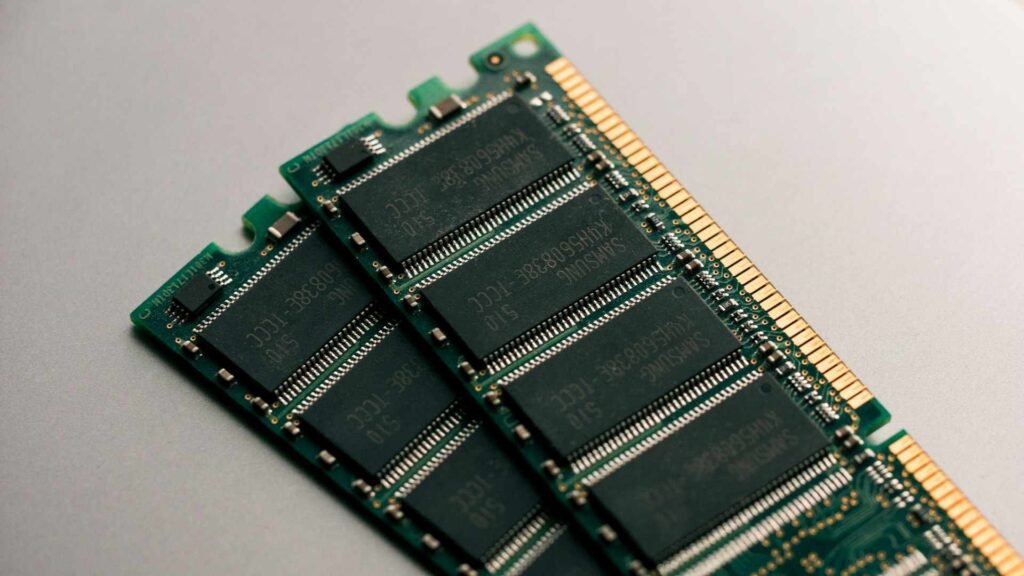
When shopping for RAM, match the speed and type to what your system already has. Mixing different RAM speeds or generations can cause compatibility issues or force everything to run at the slowest speed. It’s like trying to form a relay race team with sprinters and marathon runners, everyone ends up moving at the slower pace.
Optimizing What You Have
Not ready to buy more RAM? There are ways to maximize what you’ve got. Close programs you’re not actively using instead of letting them run in the background. Those dozen apps you opened this morning and forgot about? They’re still eating RAM.
Browser tabs are notorious RAM hogs. If you’re the type who keeps 50 tabs open “just in case,” consider using a tab management extension that suspends inactive tabs. Your computer will thank you.
Some programs have settings to reduce their memory footprint. Check if your software offers a “low memory mode” or similar option. It might disable some features, but it can free up significant resources.
For Windows users, the Task Manager shows exactly which programs are consuming the most memory. Press Ctrl+Shift+Esc and check the Processes tab. You might be surprised by what’s hogging resources. That random update service? That background app you installed months ago and never use? Time to make some cuts.
The SSD Upgrade Path
If you’re running an older computer with a traditional hard drive and limited RAM, upgrading to an SSD will absolutely improve performance. Not because it’s adding RAM, but because faster storage means less waiting for programs to load and files to open.
An SSD won’t fix the problem of insufficient RAM, but it’ll make the symptoms less painful. When your computer does have to use virtual memory, at least it’s swapping to fast storage instead of a creaky old hard drive.
For modern systems, an NVMe SSD connected via M.2 slot offers the best performance. They’re significantly faster than SATA SSDs and barely more expensive these days. If you’re building or upgrading a computer, skip the older SATA connection and go straight for NVMe.
Comparison Table
Here’s a straightforward comparison to show why using an SSD as RAM just doesn’t work the way we’d hope:
| Feature | RAM (DDR4) | NVMe SSD | SATA SSD |
|---|---|---|---|
| Speed | 25,600+ MB/s | Up to 14,000 MB/s | Up to 600 MB/s |
| Latency | 10-20 nanoseconds | 10-100 microseconds | 50-150 microseconds |
| Volatility | Data erased when powered off | Data persists | Data persists |
| Typical Capacity | 8-64 GB (consumer) | 500 GB – 2 TB | 500 GB – 4 TB |
| Primary Purpose | Active working memory | Fast permanent storage | Permanent storage |
| Lifespan | Virtually unlimited | Limited write cycles | Limited write cycles |
Looking at this, the differences become crystal clear. They’re designed for completely different jobs, and trying to force one to do the other’s work is like using a hammer when you need a screwdriver.
Frequently Asked Questions
Can you use an external SSD as RAM?
Technically, an external SSD can serve as virtual memory just like an internal one, but it’s even slower due to connection limitations. Even fast USB-C connections can’t match the speed of an internal drive. Using an external drive for virtual memory is possible but rarely advisable unless you have absolutely no other options.
Will converting my SSD to RAM damage it?
You’re not converting anything, but heavy virtual memory usage does increase wear on your SSD. SSDs have limited write cycles, and constant swapping can reduce their lifespan. Modern drives are pretty durable and should last years even with regular virtual memory use, but it’s not ideal for long-term SSD health.
Can NVMe drives work better as RAM than regular SSDs?
NVMe drives are faster than SATA SSDs, which makes virtual memory operations slightly less painful. But they’re still thousands of times slower than actual RAM. An NVMe drive can’t bridge that performance gap no matter how fast it is. The technology difference is just too fundamental.
How much virtual memory should I allocate?
Windows typically manages this automatically and does a decent job. As a general rule, the page file is set to 1.5 to 3 times your physical RAM. If you have 8 GB of RAM, expect a 12-24 GB page file. You can adjust this manually, but the automatic settings work fine for most people.
Is it better to buy more RAM or a faster SSD?
Almost always buy more RAM first if you’re experiencing slowdowns. A faster SSD is nice to have, but insufficient RAM creates constant performance bottlenecks that even the fastest storage can’t overcome. Upgrade your RAM to a comfortable level first, then consider SSD improvements.
Wrapping This Up
So can SSD be used as RAM? The technically correct answer is that your computer already does this through virtual memory, but it’s not a real substitute for actual RAM and never will be. The technologies serve different purposes, operate at vastly different speeds, and trying to force one to replace the other just leads to disappointment.
The dream of turning abundant storage space into extra memory is understandable, especially when you’re working with a tight budget. But the laws of physics and computer architecture aren’t that forgiving. SSDs are amazing at what they do, providing fast, reliable storage, but they can’t perform the instantaneous data juggling that RAM handles.
If your computer is struggling, the solution is identifying the actual bottleneck and addressing it properly. Usually that means adding more RAM, closing unnecessary programs, or upgrading from an old hard drive to an SSD in the first place.
Looking for more? Check out our tech utilities category for more articles and guides that may interest you!
Featured image credit: Photo by Andrey Matveev on Unsplash
This content is for informational purposes only. Please verify current information directly on the retailer’s site before purchasing.
References:
Microsoft. USB and SD storage media – ReadyBoost with a SD card or a flash drive. https://support.microsoft.com/en-us/topic/usb-and-sd-storage-media-readyboost-with-a-sd-card-or-a-flash-drive-f19ab915-5f8a-b131-e6d8-a6900154a42c
Ms.Hepisuthar. et al.(2021). Comparative Analysis Study on SSD, HDD, and SSHD. Turkish Journal of Computer and Mathematics Education (TURCOMAT). 12. 3635-3641. https://doi.org/10.17762/turcomat.v12i3.1644
Last reviewed and edited on 21.02.2026