How to Safely Clean a Computer Screen Without Damaging It

Dust, fingerprints, and residue build up faster than most people notice. A quick wipe with glass cleaner or a paper towel may seem harmless, but modern displays are coated with delicate anti-glare and protective layers that can be permanently damaged by the wrong materials.
Cleaning a monitor properly is less about effort and more about precision. The surface coatings on LCD, LED, and OLED panels are designed for clarity, not abrasion resistance. Using the correct cloth, minimal moisture, and controlled pressure preserves both image quality and longevity.
This guide outlines safe cleaning methods for glossy, matte, and touchscreen displays so you can remove buildup without compromising the screen itself.
Why Cleaning Your Monitor is Important
Beyond the obvious benefit of actually being able to see what’s on your display, keeping your screen clean contributes to better eye health and productivity. Dust and grime can create glare, forcing your eyes to work harder throughout the day. This strain accumulates over hours of work, potentially leading to headaches and fatigue.
Dirty screens also harbor bacteria, lots of it. Studies have shown that computer screens can contain more germs per square inch than many other surfaces in your workspace. Every time you touch your screen, you’re adding oils, bacteria, and who knows what else to the mix.
Regular cleaning extends your monitor’s lifespan too. Dust buildup can interfere with ventilation if it accumulates around the bezels and edges, potentially affecting the display’s performance over time. Taking care of your screen is taking care of your investment.
What NOT to Use
Before we dive into the right methods, let’s clear up some dangerous misconceptions. Many household cleaners that work wonders on windows or countertops can destroy your monitor in seconds.
Window cleaners containing ammonia top the list of screen killers. Ammonia breaks down the special coatings on modern displays, including anti-glare treatments and protective layers. Once that damage occurs, there’s no fixing it. Your screen will look cloudy, streaky, or develop permanent discoloration.
Paper towels and tissues might seem convenient, but they’re essentially sandpaper for your delicate screen. The wood fibers in these products can create microscopic scratches that accumulate over time, eventually making your display look perpetually hazy even when clean.
Household cleaners with alcohol, acetone, or bleach will strip protective coatings faster than you can say “warranty void.” These harsh chemicals might clean effectively, but they’ll leave lasting damage that worsens with each application.
Rough fabrics like terry cloth, old t-shirts, or washcloths contain fibers too coarse for sensitive screens. Even if they feel soft to your hand, they can scratch the display surface. The same goes for those abrasive cleaning sponges, save those for your kitchen sink, not your monitor.
The Right Materials for Safe Screen Cleaning
So what should you use? The answer is simpler than most people expect.
Microfiber cloths are your best friend for screen cleaning. These ultra-soft fabrics are specifically designed to lift dust and oils without scratching. The microscopic fibers trap particles instead of pushing them around, preventing scratches. Keep several on hand, one for dry dusting and others for deeper cleaning sessions.
Distilled water works surprisingly well for most cleaning jobs. Unlike tap water, distilled water contains no minerals that could leave residue or spots on your screen. For everyday maintenance, slightly dampened microfiber with distilled water handles most smudges and dust buildup effectively.
Screen-safe cleaning solutions are available if you need extra cleaning power. Look for products specifically labeled for monitors, laptops, or electronics. These formulas are designed to clean without damaging protective coatings. Alternatively, you can create a safe solution by mixing equal parts distilled water and white vinegar (though this should be used sparingly and never directly on the screen).

A spray bottle helps apply cleaning solution correctly. Never spray directly onto your monitor, always mist your cloth instead. This prevents liquid from seeping into the edges of your display where it can cause internal damage.
How to Clean Your Monitor Safely: Step-by-Step
Ready to restore your screen’s clarity? Follow this proven process for spotless results without the risk.
Turn Everything Off First
Power down your computer completely and unplug the monitor if possible. This safety step protects both you and your equipment. Additionally, a dark screen makes smudges and dust much more visible, helping you identify problem areas you might otherwise miss.
Allow the screen to cool completely if it’s been running. Cleaning a warm display increases the risk of streaking and can cause cleaning solution to evaporate too quickly, leaving residue behind.
Start with Dry Dusting
Begin every cleaning session with a dry microfiber cloth. Gently wipe the screen in broad, circular motions to remove loose dust and particles. This prevents you from grinding dirt into the screen during the wet-cleaning phase.
Don’t press hard, let the cloth do the work. Excessive pressure can damage pixels, especially on LCD screens. Think of it like dusting a delicate photograph, not scrubbing a stovetop.
Pay attention to the bezels and edges where dust tends to accumulate. Getting rid of dust buildup around your entire workspace improves air quality and reduces how quickly your screen gets dirty again.
Apply Cleaning Solution the Right Way
If dry cleaning didn’t remove all the smudges, it’s time for a slightly damp approach. Lightly mist your microfiber cloth with distilled water or screen cleaner, never spray the monitor directly. The cloth should be barely damp, not dripping wet.
Wipe the screen gently in a single direction, either horizontally or vertically. Avoid circular motions during wet cleaning as they can leave swirl marks. Start from the top and work your way down, using overlapping strokes to ensure complete coverage.
For stubborn spots, hold the damp cloth against the mark for a few seconds to loosen it before wiping. Never scrub aggressively, if something won’t come off easily, it may require a specialized cleaner or professional attention.
Dry and Inspect
After cleaning, use a separate dry microfiber cloth to remove any remaining moisture. This step prevents water spots and streaking. Wipe in the same directional pattern you used for cleaning.
Tilt the monitor slightly to inspect from different angles, checking for missed spots or streaks. The proper positioning of your screen can help you spot areas that need additional attention.
Allow the screen to air dry completely before turning your computer back on. Even if it looks dry to the naked eye, give it an extra few minutes to ensure no moisture remains around the edges.
Different Screen Types
Not all monitors are created with the same materials, and understanding your specific display type helps you clean it more effectively.
Glossy vs Matte Screens
Glossy screens show fingerprints and smudges more readily but are generally easier to clean. Their smooth surface allows dirt to wipe away with less effort. However, they’re also more prone to visible scratches, so gentleness is paramount.
Matte or anti-glare screens have a slightly textured surface that diffuses light. This texture can trap dust and oils more stubbornly, requiring a bit more patience during cleaning. The same gentle approach applies, but you might need to make a few more passes with your cloth to achieve streak-free results.
Touchscreen Displays
Touchscreens accumulate oils from fingertips constantly, requiring more frequent cleaning. The good news is these screens are typically designed with more durable coatings to handle regular touching. You can clean them more frequently without worry, though the same gentle techniques still apply.
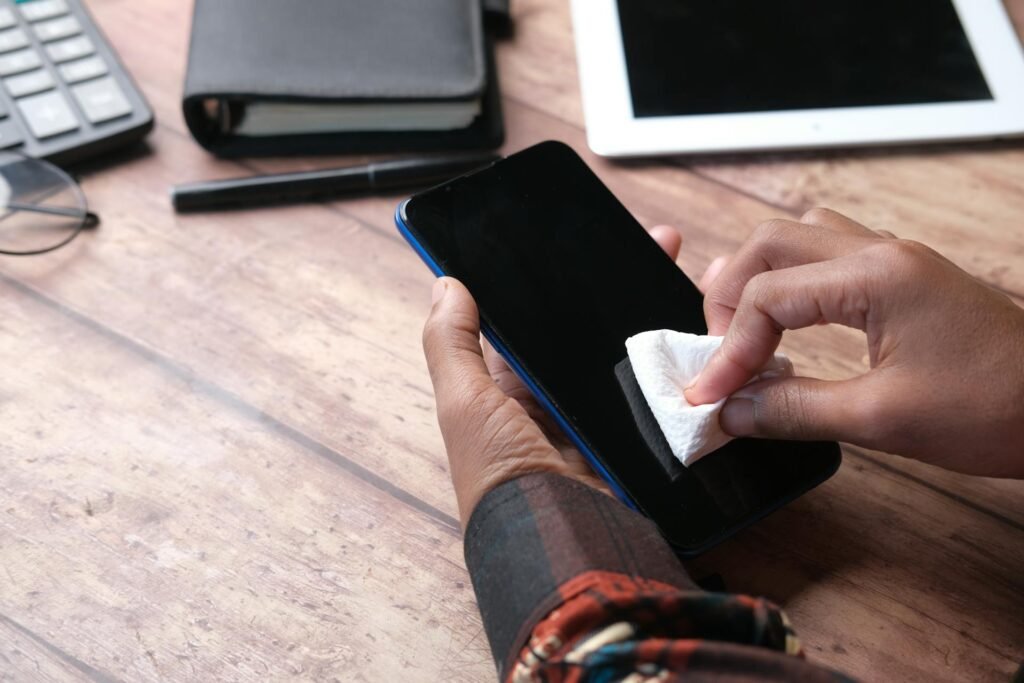
For heavily used touchscreens, consider cleaning at the start and end of each workday. This routine prevents oil buildup from becoming stubborn and keeps the touch sensitivity responsive.
Laptop Screens vs Desktop Monitors
Laptop screens tend to be more delicate than desktop monitors due to their portable nature and thinner construction. Exercise extra caution with laptops, using even less pressure during cleaning.
Desktop monitors, while sturdier, often collect more dust due to their stationary position and larger surface area. Regular dusting becomes even more important for these displays.
Cleaning Solutions Comparison
Not sure which cleaning approach works best for your situation? Here’s a practical breakdown:
| Method | Best For | Cost | Effectiveness | Safety Level |
|---|---|---|---|---|
| Dry Microfiber | Daily maintenance, light dust | Very Low | Good for regular upkeep | Safest option |
| Distilled Water + Microfiber | General cleaning, most smudges | Very Low | Excellent for routine cleaning | Very Safe |
| Commercial Screen Cleaner | Stubborn marks, heavy use | Moderate | Excellent for tough grime | Safe when used properly |
| Water + Vinegar Mix | Occasional deep cleaning | Very Low | Good for stubborn spots | Safe in small amounts |
| Pre-moistened Screen Wipes | Travel, convenience | Moderate | Good for quick cleaning | Safe if screen-specific |
The sweet spot for most people involves dry microfiber for daily maintenance combined with distilled water for weekly deeper cleaning. This combination handles probably 95% of cleaning needs without any special purchases beyond a few quality microfiber cloths.
Common Screen Cleaning Mistakes
Even with the best intentions, certain habits can damage your display. Recognizing these mistakes helps you avoid costly errors.
Using too much liquid ranks among the most common mistakes. Excess moisture can seep behind the bezel into your screen’s internal components, causing irreversible damage. Your cloth should be barely damp, if you can squeeze water out of it, you’ve used too much.
Applying pressure to remove stubborn marks can damage pixels or crack the screen entirely. Modern displays are more resilient than their predecessors, but they’re still sensitive to force. If something won’t come off with gentle wiping, evaluate whether it’s actually on the screen or potentially a dead pixel underneath.
Cleaning while the screen is on makes it harder to see what you’re doing and poses an electrical hazard. Always power down completely. This also prevents accidental clicks or commands while wiping the screen of touchscreen devices.
Ignoring manufacturer guidelines can void warranties. Check your monitor’s manual or manufacturer website for specific cleaning recommendations. Some brands recommend particular products or explicitly warn against certain substances.
Reusing dirty cleaning cloths just redistributes grime across your screen. Wash microfiber cloths regularly according to their care instructions, typically using gentle detergent without fabric softener, which can leave residue on the fibers.
Protecting Your Screen Between Cleanings
Prevention reduces how often deep cleaning becomes necessary. A few simple habits keep your monitor cleaner for longer.
Hands off the screen should become your mantra. Resist pointing at things on the display with your finger. Use a stylus for touchscreens when possible, or simply gesture near the screen without making contact.

Control your workspace dust by maintaining cleanliness in your office. Regular dusting of surrounding surfaces prevents particles from settling on your screen. Consider an air purifier if dust is a persistent problem in your workspace.
Screen protectors offer an extra layer of defense for touchscreens and laptops. These thin films take the brunt of fingerprints and smudges, and many can be cleaned more aggressively than the screen itself. When the protector gets too scratched or dirty, simply replace it.
Position your monitor away from direct airflow from fans or HVAC vents. Moving air carries dust particles that settle on vertical surfaces like screens. Adjusting your monitor’s position even slightly can dramatically reduce dust accumulation.
Environmental Factors
Your workspace environment plays a surprisingly large role in how quickly your screen gets dirty and how difficult it becomes to clean.
Humidity levels impact both dust accumulation and cleaning effectiveness. Very dry environments generate more static, attracting dust particles. Excessively humid conditions can make screens sticky and attract more fingerprints. Maintaining moderate humidity benefits both your electronics and your comfort.
Temperature fluctuations cause condensation on screens when warm, humid air meets a cooler display surface. This condensation attracts dust and can leave water spots. Cold weather considerations become particularly relevant for screens near windows or in climate-controlled offices with significant temperature variations.
Air quality directly correlates with screen cleanliness. Cooking smells, smoke, pet dander, and other airborne particles settle on vertical surfaces. Improving overall air quality through filtration or ventilation reduces how often your screen needs attention.
FAQ
How often should I clean my computer screen?
For most people, a light dry dusting daily or every other day keeps things manageable, with a more thorough damp cleaning once a week. If you work in a dusty environment or have a touchscreen you use frequently, you might need to clean more often. Pay attention to visibility, if you notice smudges affecting your ability to see clearly, it’s time for a cleaning session.
Can I use eyeglass cleaner on my monitor?
Generally, no. While eyeglass cleaners seem similar to screen cleaners, many contain chemicals that can damage monitor coatings. Eyeglass lenses have different coatings than computer screens, and what’s safe for one isn’t necessarily safe for the other. Stick with products specifically designed for electronics or the simple distilled water method.
What should I do if liquid gets inside my screen?
Power off the device immediately and unplug it. Don’t attempt to turn it back on. Position the screen to allow gravity to help liquid drain away from internal components. Let it dry completely for at least 48 hours in a warm, dry location. If the screen shows signs of damage after drying, professional repair might be necessary. This scenario highlights why preventing liquid from entering the screen matters so much.
Will cleaning my screen void the warranty?
Proper cleaning with approved methods won’t void warranties, but using harsh chemicals or inappropriate tools that cause damage likely will. Always check your manufacturer’s specific recommendations in the user manual or on their website. Document your cleaning routine in case warranty claims arise later, showing you followed proper procedures can support your case.
Can I clean my screen with just water from the tap?
While tap water won’t immediately destroy your screen, it contains minerals that leave spots and streaks as the water evaporates. Over time, these mineral deposits can build up and become harder to remove. Distilled water costs very little and eliminates this problem entirely, making it worth the minimal investment. If you absolutely must use tap water in an emergency, use as little as possible and dry thoroughly.
Why does my screen still look streaky after cleaning?
Streaking typically results from one of three issues: using too much liquid, not fully drying the screen, or having residue on your microfiber cloth. Make sure your cloth is barely damp, not wet. Always finish with a completely dry cloth using straight strokes rather than circles. If your microfiber cloth has been used many times, it might need washing or replacing, dirty cloths deposit oils back onto the screen as you clean.
Taking Care of Your Digital Window to the World
A monitor is a long-term investment and one of the most frequently used surfaces in any workspace. Routine, careful cleaning preserves visual clarity, reduces glare, and protects the coatings that manufacturers apply to improve contrast and durability.
The process does not require specialized equipment. A clean microfiber cloth, distilled water, and controlled technique are sufficient for nearly all maintenance. Consistency matters more than intensity. Light, regular cleaning prevents the buildup that leads people to over-scrub and cause damage.
Different displays require slight adjustments in pressure and frequency, but the principles remain constant: avoid harsh chemicals, minimize moisture, and never apply force.
Handled correctly, a screen can maintain clarity and coating integrity for years. Neglected or cleaned improperly, it degrades far sooner than necessary. Proper maintenance protects both performance and cost.
Looking for more? Check out our tech utilities category for more articles and guides that may interest you!
Featured image credit: Photo by Polina Tankilevitch on Pexels
This content is for informational purposes only. Please verify current information directly on the retailer’s site before purchasing.
References:
Apple (2025). How to clean your Apple products. https://support.apple.com/en-us/103258
Microsoft (2024). How to safely clean computer screens. https://www.microsoft.com/en-us/surface/do-more-with-surface/how-to-clean-computer-screen
Sean Whaley (2025). How to Properly Clean Your Monitor Screen: A Quick Guide. https://www.hp.com/us-en/shop/tech-takes/how-to-clean-monitor-screen
Last reviewed and edited on 21.02.2026